Set up L2TP/IPSec on macOS
L2TP/IPSec is a widely used legacy VPN Protocol and it supports most operating systems. It is very easy to set up directly on the OS and doesn’t require any additional software installation.
Requirements
- Operating System- macOS
- Unrestricted Internet.
Leak Prevention
Connect to VPN with L2TP/IPSec
1. Get L2TP/IPSec Credentials For Your IP Address
L2TP/IPSec uses L2TP/IPSec protocol. Find your L2TP/IPSec Credentials from your Service Page.
Further steps shows how to get credentials for:

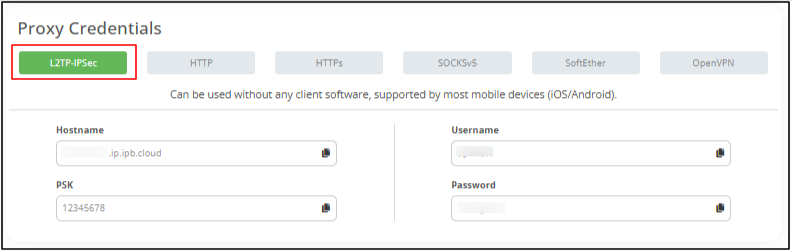
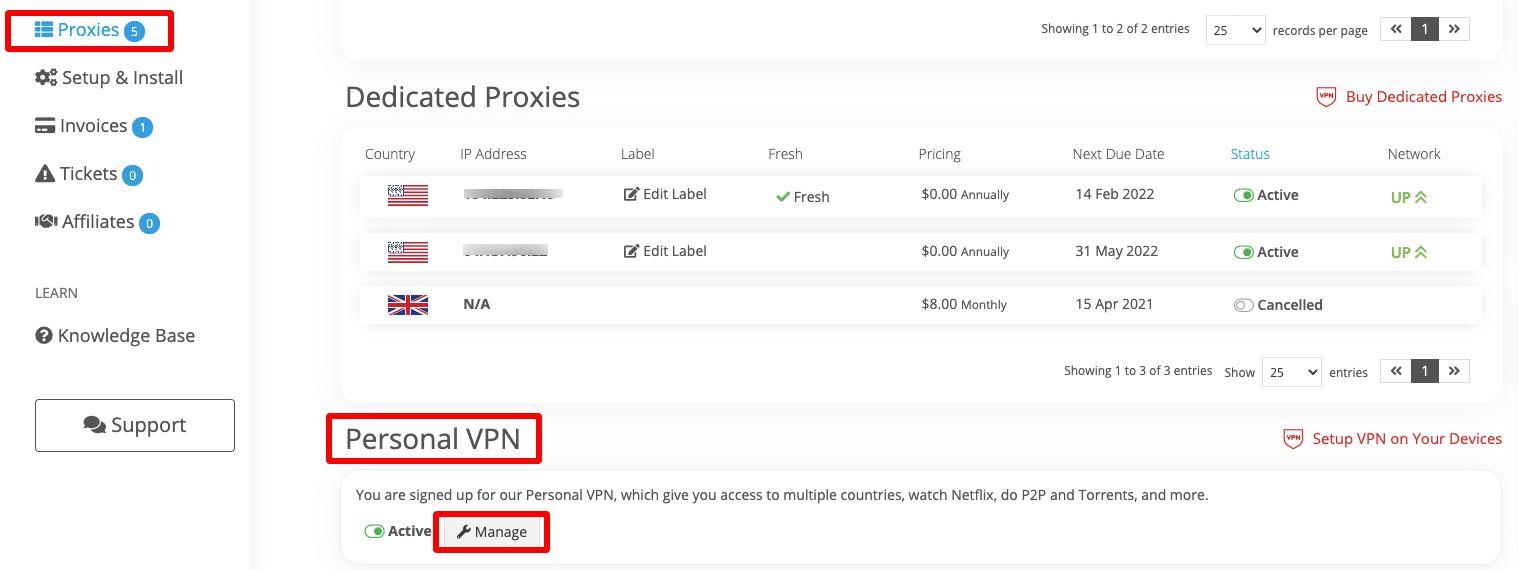
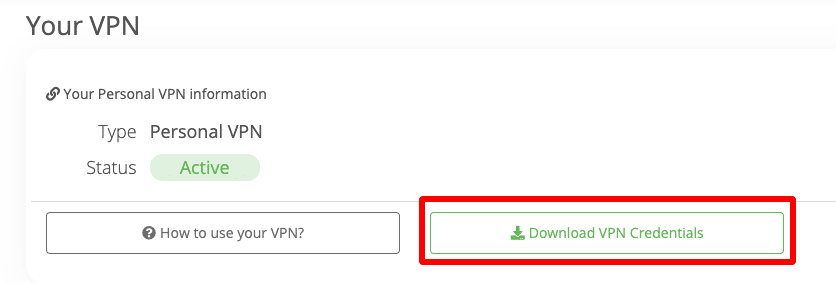
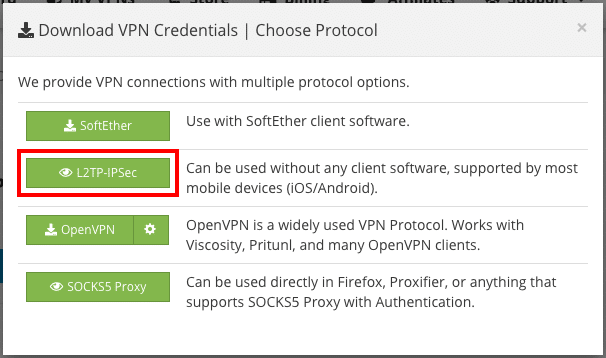
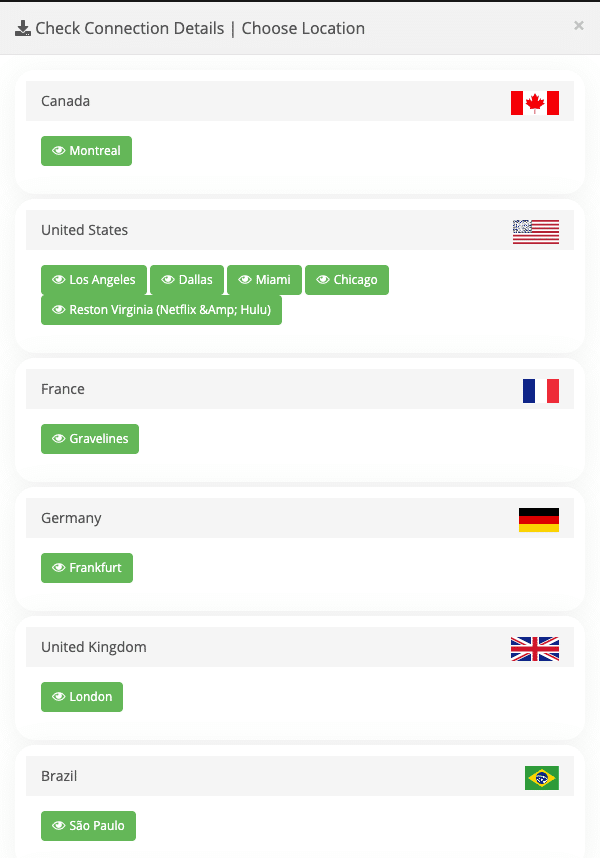
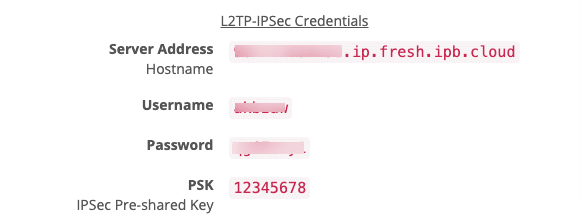
2. Configure L2TP/IPSec In MacOS
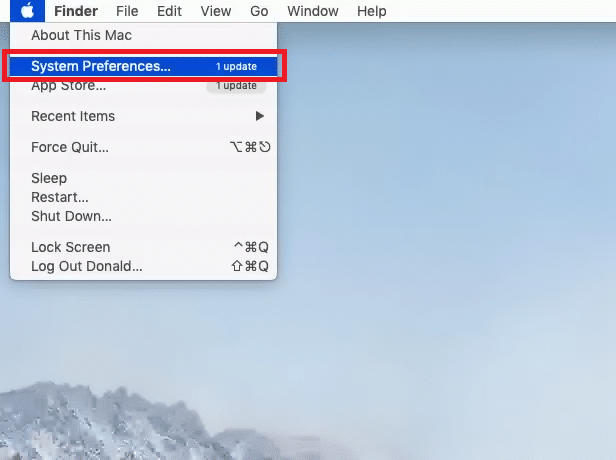
Click the Apple icon and select the System Preferences from the dropdown menu.
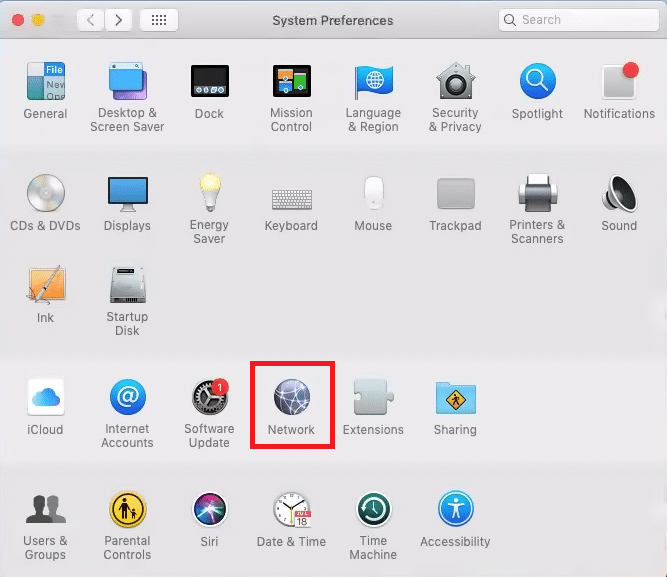
Select Network.
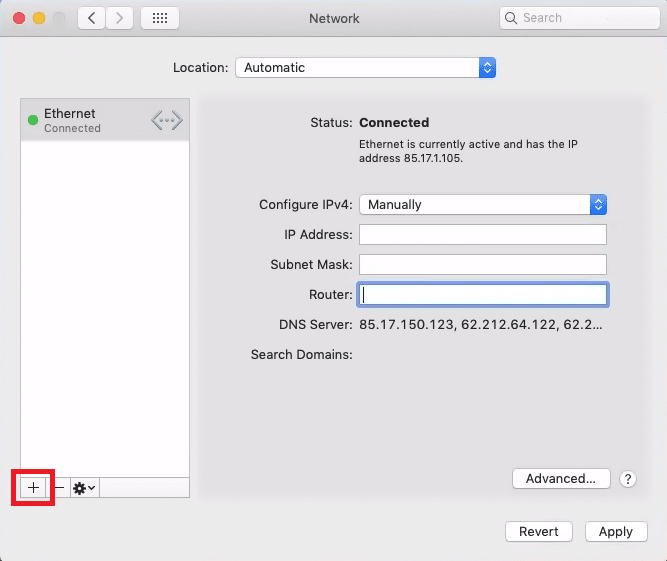
In the pop-up window, click on the +/plus button as below the Ethernet panel.
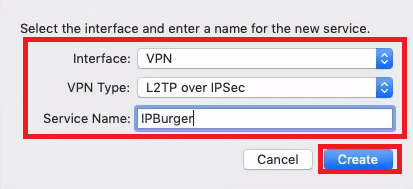
Enter the details as shown below and click Create.
- Interface:VPN
- VPN Type:L2TP over IPSec
- Service Name: Give a friendly name, likeIPBurger
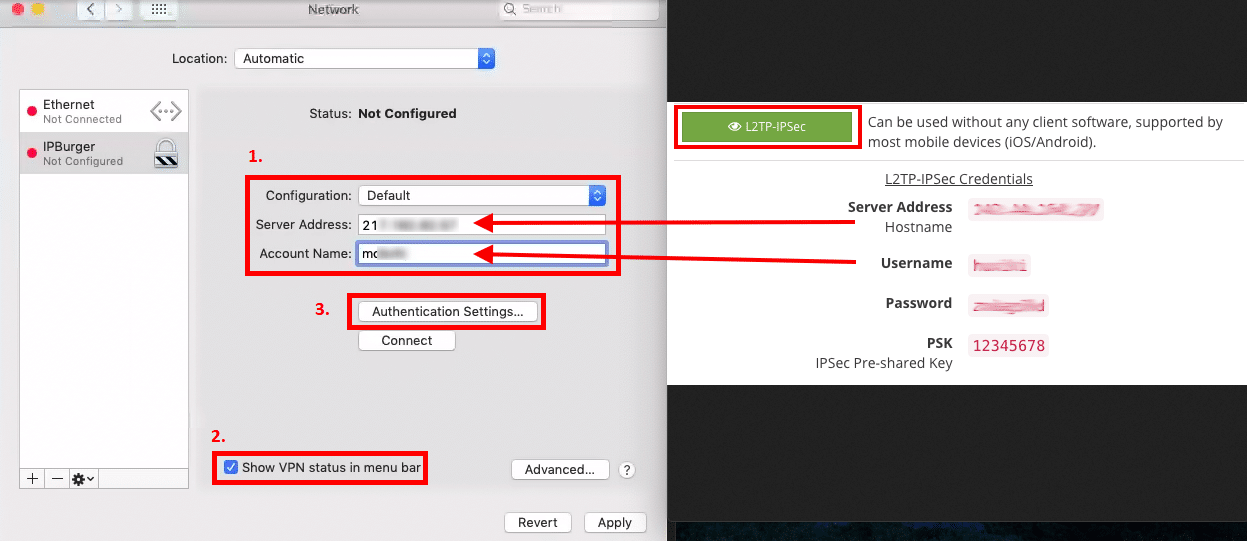
Afterwards, the dialog box will display. Please follow the guide below:
- In
- Tick the
- Click on the
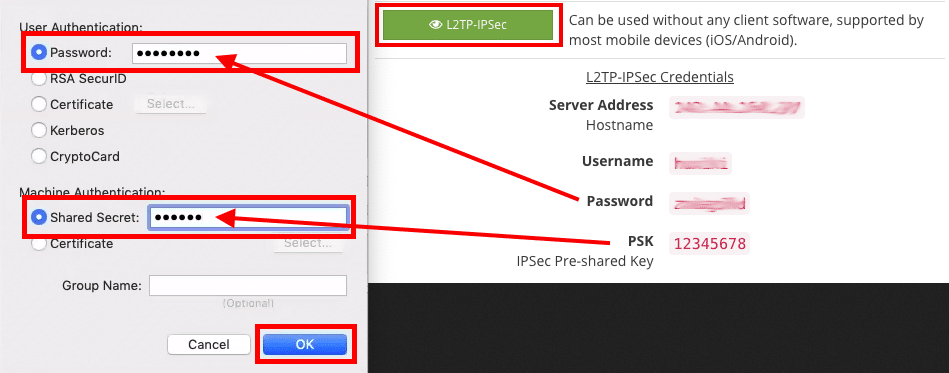
Under the User Authentication, copy the data from your L2TP/IPSec Credentials to the Password and Shared Secret (PSK) fields and click OK.
Now, click the Advanced button.
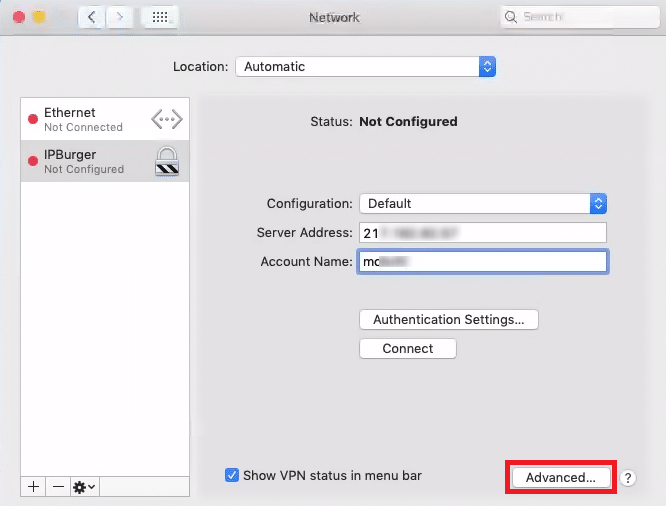
Under Session Options, tick all three checkboxes as shown below and click OK.
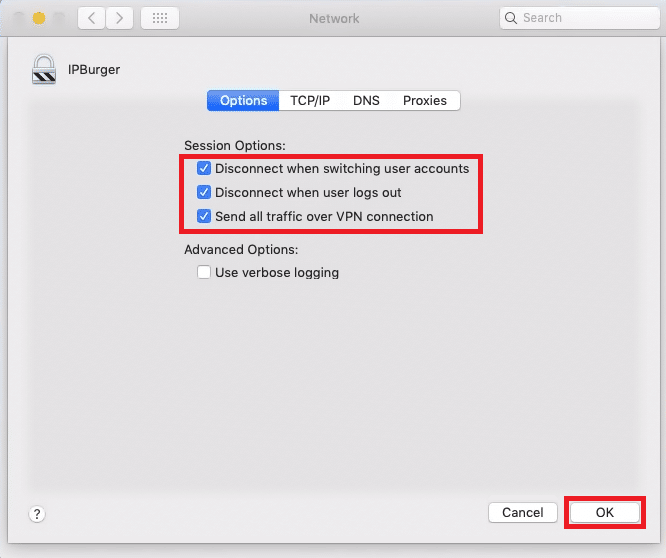
Click Apply.
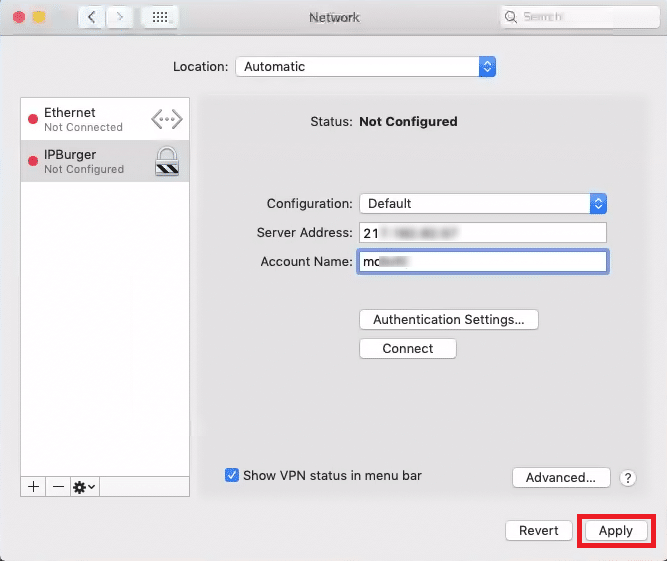
3. Connect to VPN
In the Connection Preferences, select IPBurger and click Connect.
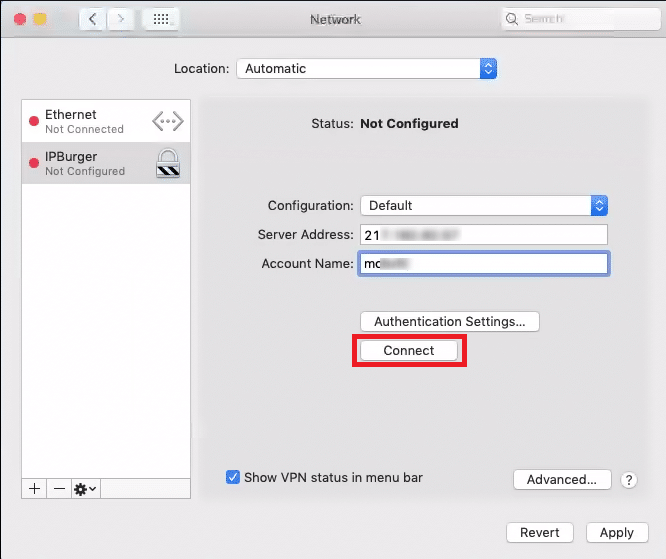
You can also connect directly from the macOS menu bar.
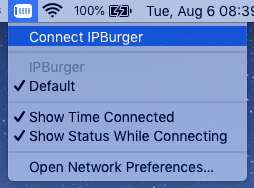
Now you are connected to IPBurger VPN.
If you are having issues connecting, please contact our Support, we are happy to help!
Next Steps
Kill Switch
Kill Switch blocks you from exposing your Real IP Address, if the VPN Connection ever drops.
We currently don’t have a kill switch for macOS.
Perform Leak Tests
Please follow:
Multiple Accounts
You can easily set up multiple Business Accounts with Multiple IP Addresses from IPBurger.
Please follow:
For any queries, feel free to reach out to our Support, we are happy to help!