Prevent DNS Leaks on Windows 8 and 10
If you are not using IPBurger Extension for browsers, you must configure your PC to prevent DNS leaks so as to properly use IPBurger VPN services. Otherwise, your real IP Address might be leaked.
For using VPN Software/Protocols such as SoftEther, L2TP, or OpenVPN on Windows 8/10, you must prevent DNS leaks.
Configure Windows 8/10 to prevent DNS leaks
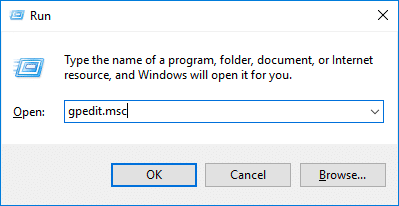
1. Open the Group Policy Editor. Press the ▰ (windows) key + R. Type gpedit.msc and click OK.
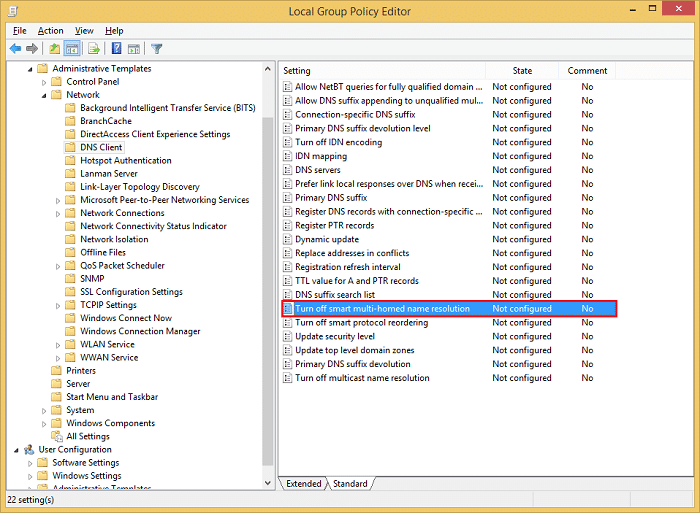
2. Find your policy. Inside Group Policy Editor, go to Administrative Templates > Network > DNSClient. Afterwards, right-click on the Turn off smart multi-homed name resolution option.
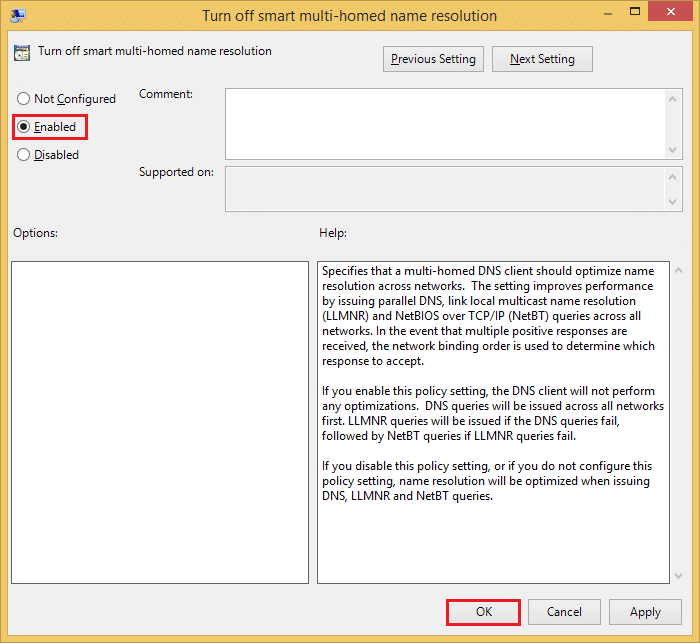
3. Click on Edit. Select the Enabled radio button and click OK.
4. Restart your PC for the changes to take effect.
That’s it, your are now secured against any DNS Leaks, and you can safely use the VPN.
For any queries, feel free to reach out to our Support, we are happy to help!