Set up SoftEther on Windows Vista
SoftEther is a solid open-source VPN Client. It outperforms OpenVPN in many aspects, offers much faster connection speed, and better penetration across firewalls.
Recommendations
- Upgrade OS- Windows XP is an obsolete Operating System. We recommend upgrading to newer Operating Systems.
Requirements
- Operating System- Windows Vista
- Unrestricted Internet.
Connect to VPN with SoftEther
1. Get the SoftEther application
Note: If you have already installed it once, then you can skip this step.
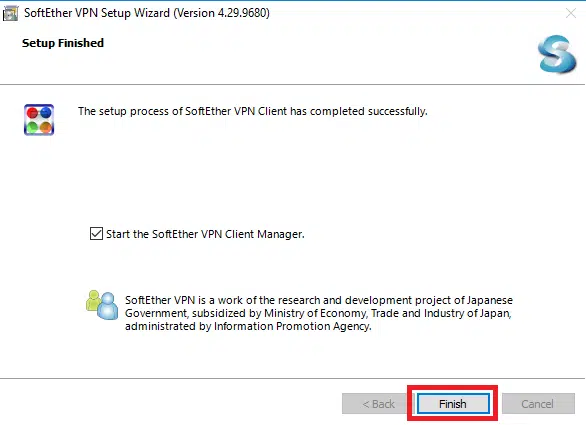
Find and Install SoftEther from here: Install SoftEther VPN Client
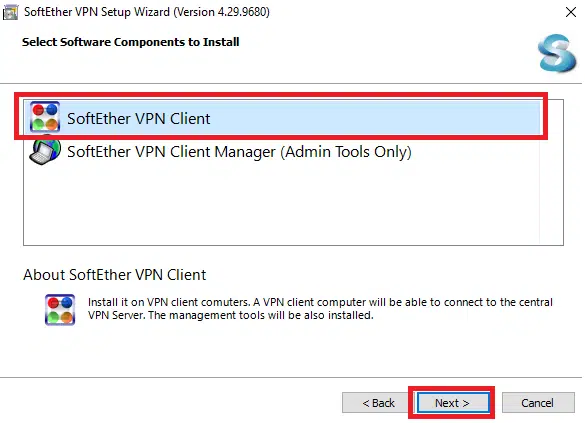
Select SoftEther VPN Client.
2. Get SoftEther credentials for your IP address
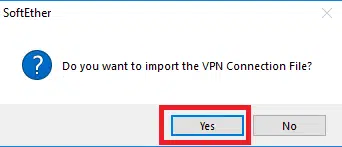
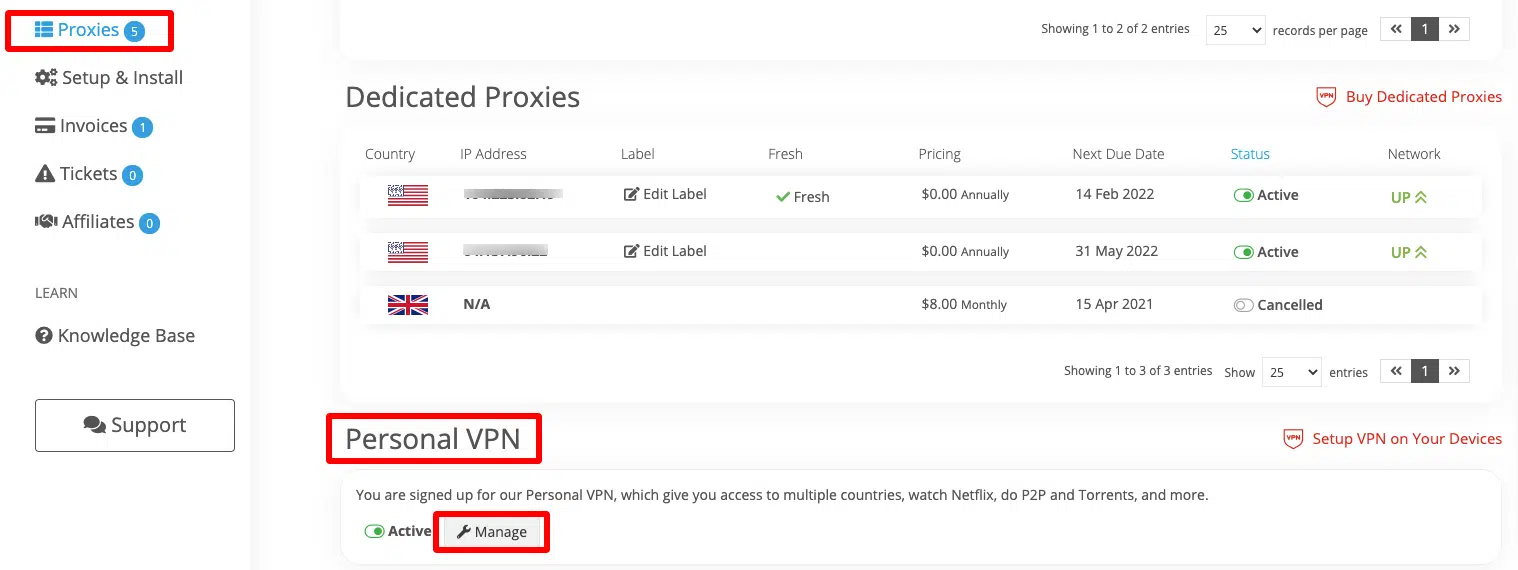
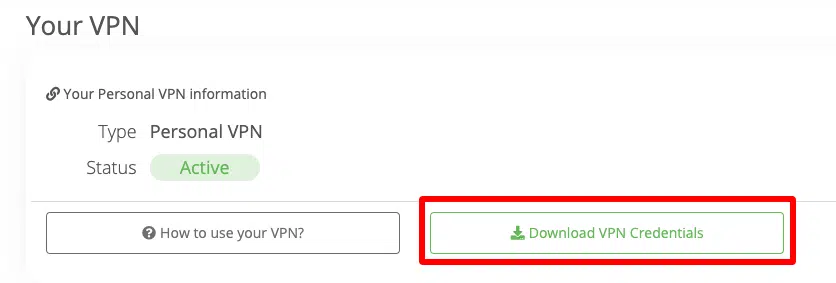
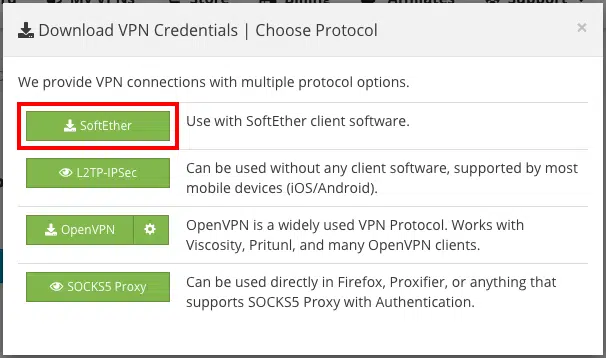
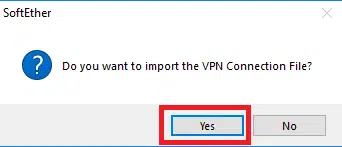
SoftEther uses the SoftEther protocol. Find your SoftEther Credentials from your Service Page.
Further steps shows how to get credentials for:





3. Connect toVPN
In SoftEther, find the Connection you just imported, and click on Connect.
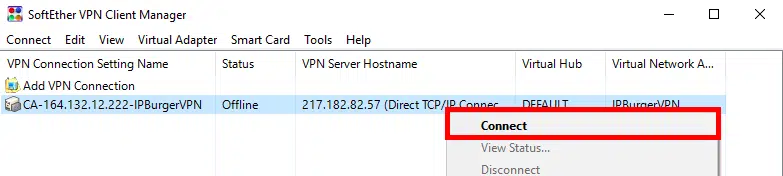
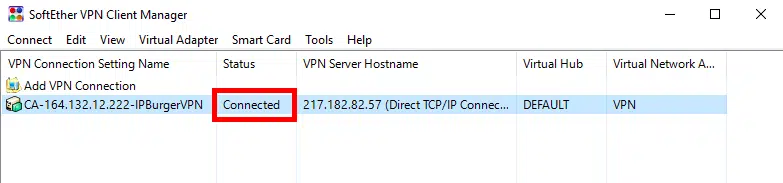
You may verify that you are already connected to IPBurger VPN under the Status column.
If you are having issues connecting, please contact our Support, we are happy to help!
Next Steps
Auto-Connect
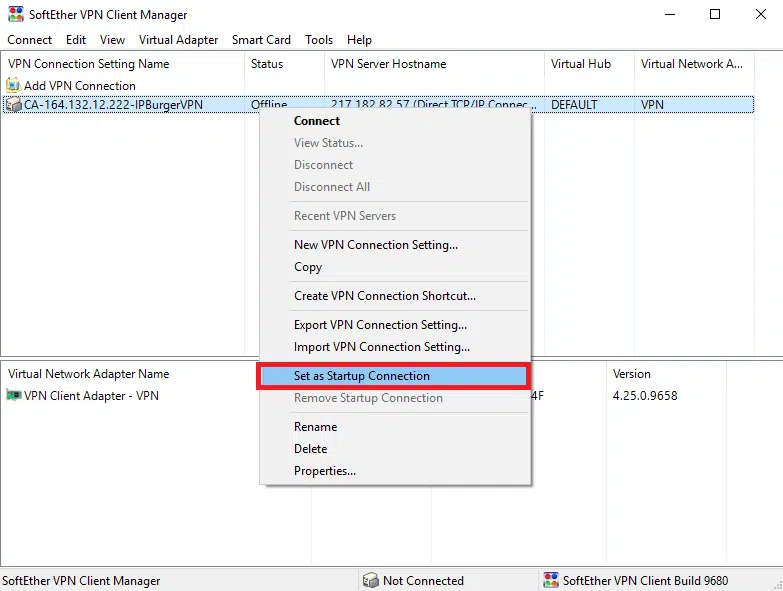
You can set up your VPN to connect automatically when you login into your computer.
Right-click on the Connection and click Set as Startup connection.
Kill Switch
Kill Switch blocks you from exposing your Real IP Address, if the VPN Connection ever drops.
To Setup, please follow the guide below:
Perform Leak Tests
Please follow:
Multiple Accounts
You can easily set up multiple Business Accounts with Multiple IP Addresses from IPBurger.
Please follow:
For any queries, feel free to reach out to our Support, we are happy to help!